
Release 1.4.0: Checklists
QFacts 1.4.0 introduces the Checklist Module. Build checklist templates once, get them reviewed and approved, and launch them by hand or on a schedule. Answers are graded automatically and every step is signed. Also new: saved filters, one Export menu for every table, and Microsoft sign-in.

Seifeldin Sabry
Software Engineer

Release 1.4.0: Introducing the Checklist Module
QFacts 1.4.0 brings checklists into your quality system: build a checklist once, get it reviewed and approved, then launch it to your team and get signed, graded results back. Every step lands on the audit trail.
Alongside checklists, this release adds saved filters on list pages, one Export menu for every table, Microsoft sign-in, and a long list of smaller fixes from our acceptance testing with customers.
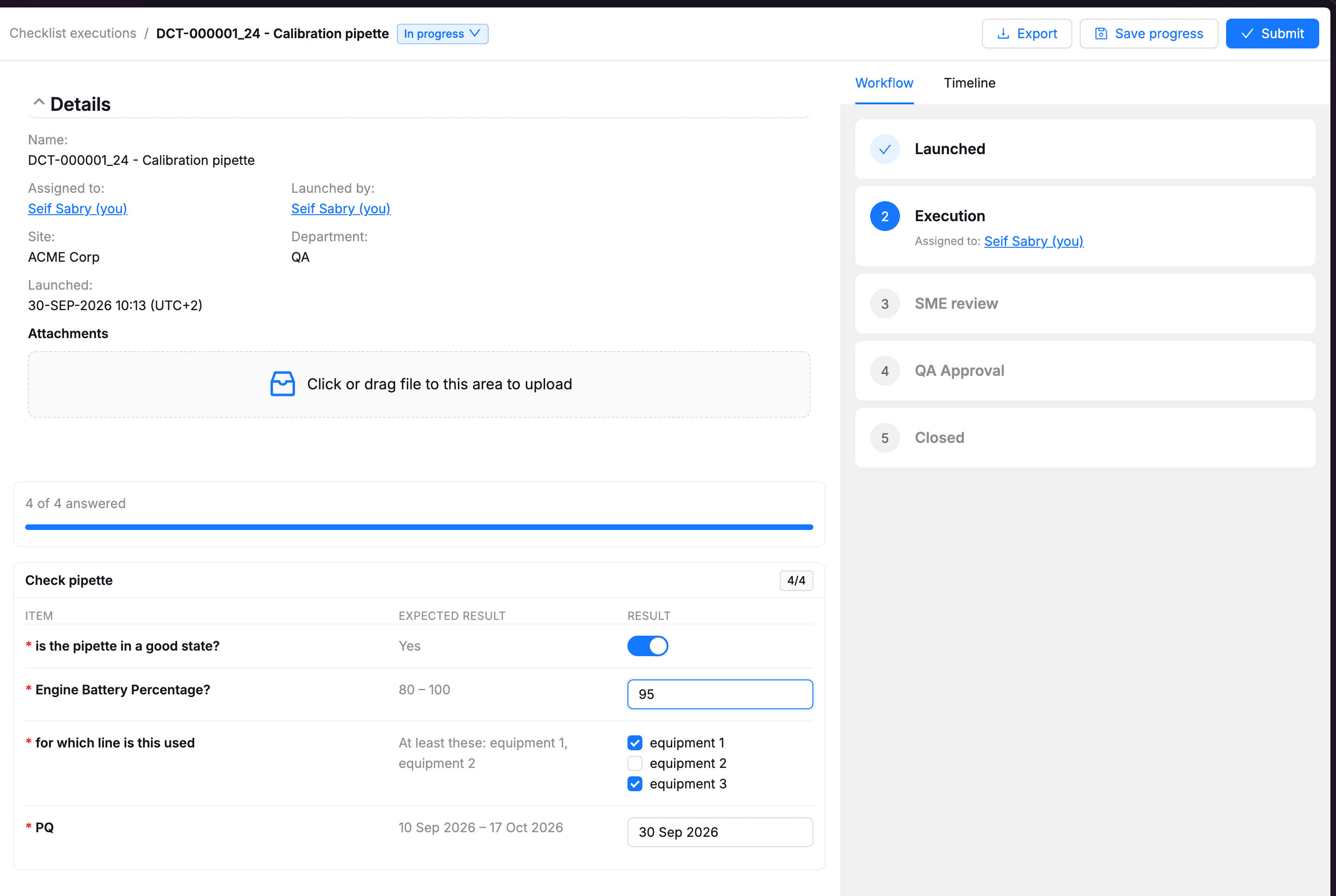
Introducing the Checklists Module
Checklists replace paper forms and spreadsheets for routine checks: line clearances, equipment inspections, environmental monitoring, housekeeping rounds. They follow the same controlled lifecycle as your documents.
Build a template once
A checklist template is made of sections and items. Each item has an answer type: Yes / No, Text, Number, Number range, Single choice, Multiple choice, Date or Date range.
For each item you set the expected result:
- Numbers take a target and a tolerance, with a unit (°C, bar, CFU and more).
- Ranges take a minimum and a maximum.
- Choices list the acceptable answers.
- Text items can ask the executor to confirm the result.
- Not applicable can be set wherever no check applies.
When the checklist is filled in, QFacts compares each answer with its expected result and marks it Conforming or Non-conforming automatically.
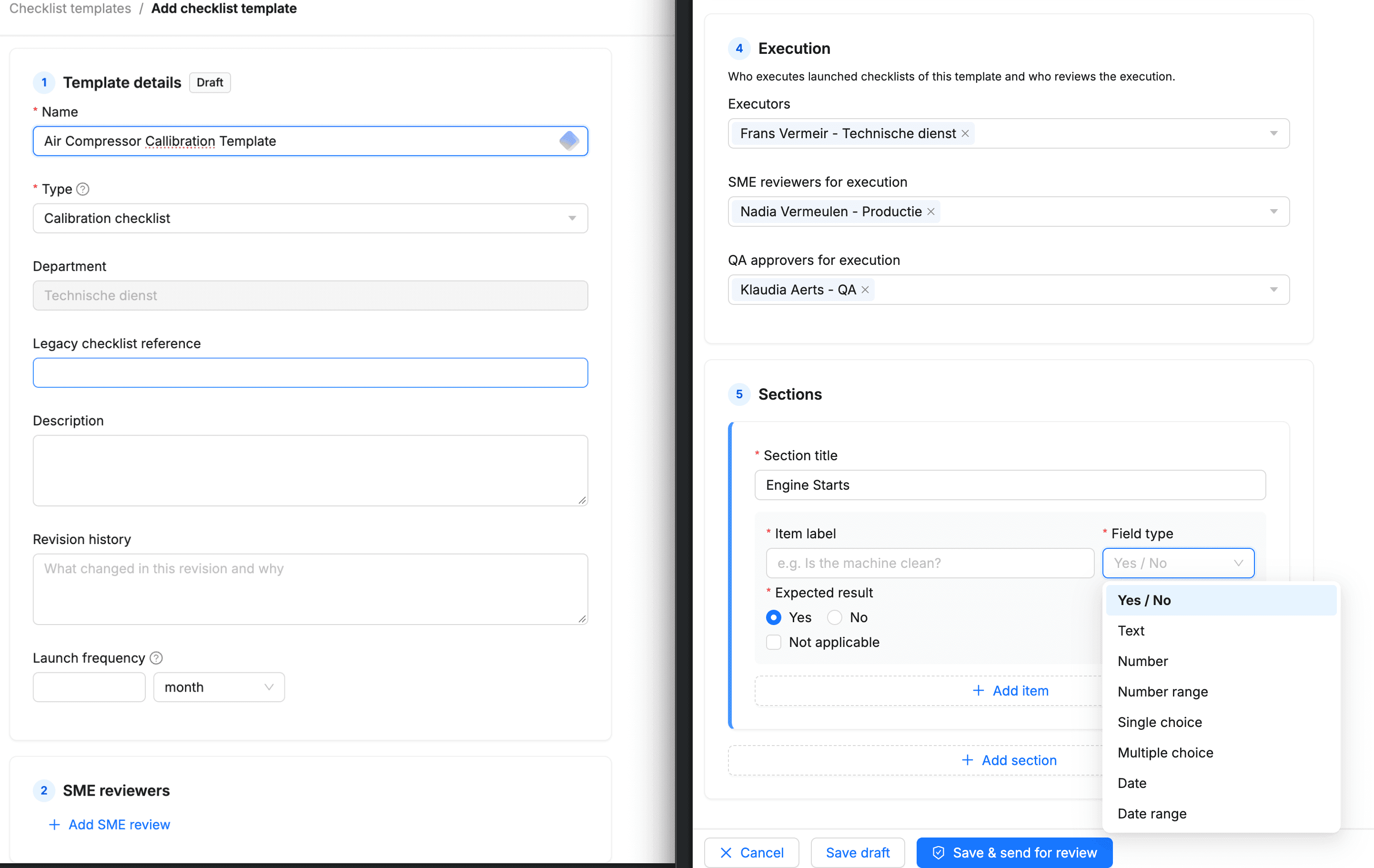
Reviewed, approved, versioned
Templates follow the same path as documents: Draft, then SME review, then QA approval, then Effective. "Save & send for review" asks for your digital signature.
Changes go into a new revision, and the effective one stays in use until the new one is approved. You can open earlier revisions read-only from the revision history. Clear banners always show which revision you are looking at.
Launch, execute, sign
Once a template is effective, launch it by hand or let QFacts launch it on the template's own schedule (every N days, months or years). The executor gets an "Execution Requested" email and finds the checklist under My checklists.
Executors answer the items, attach evidence and save progress as they go. A progress bar shows how many items have been answered. Submitting requires the executor's digital signature.
Export and audit
Any execution can be exported as a PDF, with or without its timeline. Every step (launch, sign-off, review, export) appears on the audit trail. Open checklists and templates waiting for you show up in the dashboard to-do list.
Saved filters
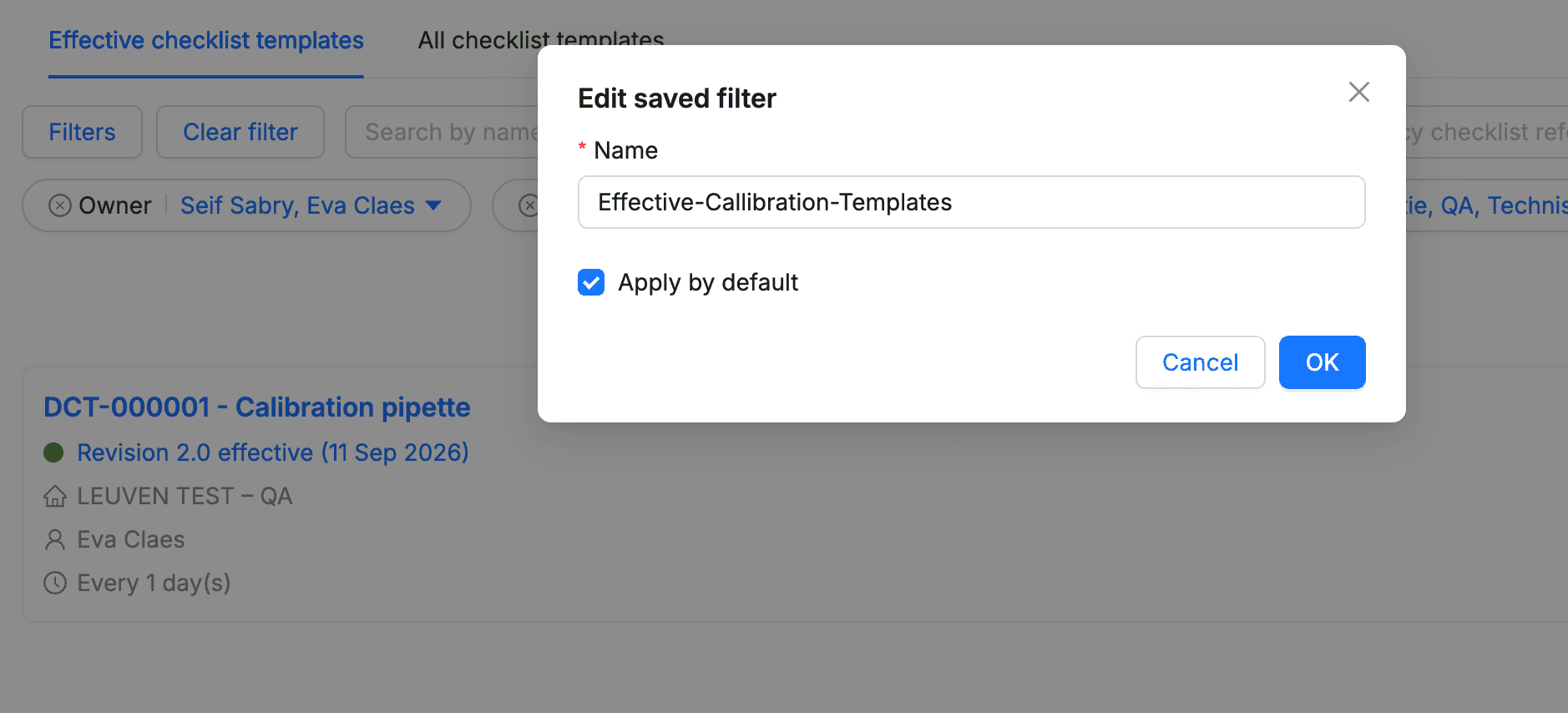
If you use the same filters every day, save them. Set up the filters on a list, click Save current filters and give the set a name. Your saved filters appear in the Filters panel, one click away.
You can also mark one saved filter as Apply by default, so the list opens pre-filtered every time. Saved filters can be edited, renamed or deleted at any time.
Other improvements
Sign in with Microsoft. Organisations can let their users sign in with their Microsoft work account. Admins switch it on under Organisation settings → Security by entering their Entra tenant ID and allowed email domains. Turning it on or off is recorded in the audit trail.
One Export menu, fully audited. Every table and record now has the same Export menu, with Excel and PDF, and options to include the timeline or actions on records. Every export is logged on the organisation timeline, including the site it was made from. Exported dates use the same format as on screen.
Clearer record headers. Every record page shows name, version and status the same way in the breadcrumb, and stays tidy on small screens.
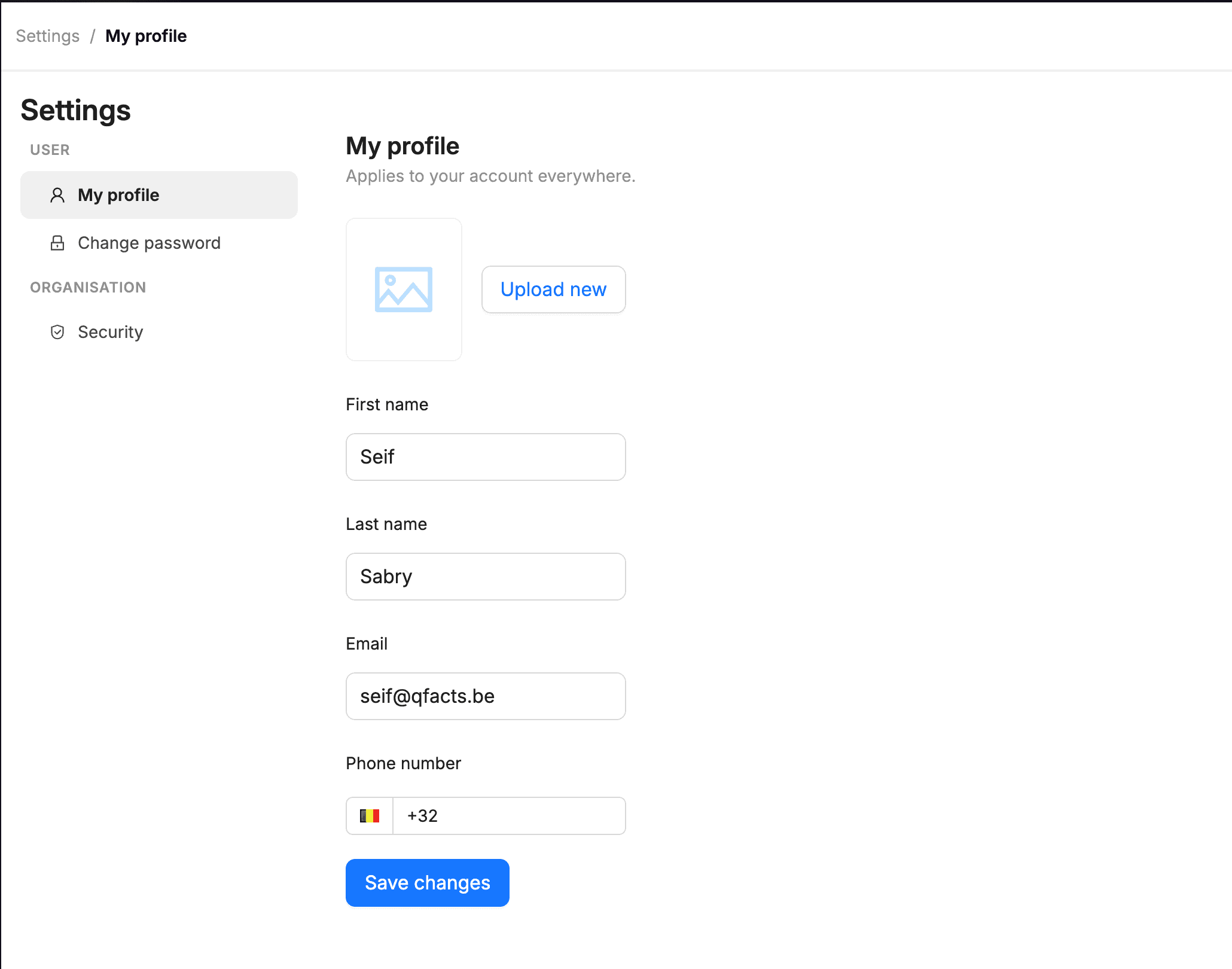
Personal settings in one place. Profile, password and two-factor authentication now live together under Settings.
Last reviewed:
About the author
Seifeldin Sabry
Enabling Auditors to do their best work and save their time with QFacts
Discuss your quality workflow with QFacts.
Talk to our team